Lenovo laptop reset button

Lenovo laptop reset button

Lenovo laptops with non-removable batteries have a “power/battery reset” button that is useful to use when troubleshooting problems with:

– laptop not powering on
– external devices (including monitors) not being recognized by the laptop
– power adapters (battery chargers) not being recognized by the laptop
– messages about the power adapter

The actions below do not affect any software or settings.

—-

Follow these steps to use the “power/battery reset” button:

– Disconnect computer from all cables, including monitors and power adapters.
– Shutdown computer.
– Find a paperclip, toothpick, or other small pointy object.
– Turn computer upside down.
– Stick the paperclip (or other object) in the small hole on the bottom of computer. You should feel a click.

– Click the button a few times.
– Click the button and hold it down for 60 seconds.
– Turn the computer back on.
– Plug external devices and/or cables back into the computer.

Lenovo System Update

Lenovo System Update

iSchool-issued Lenovo brand laptops come with an application named “Lenovo System Update” installed.

The Lenovo System Update application regularly runs in the background to install driver updates.

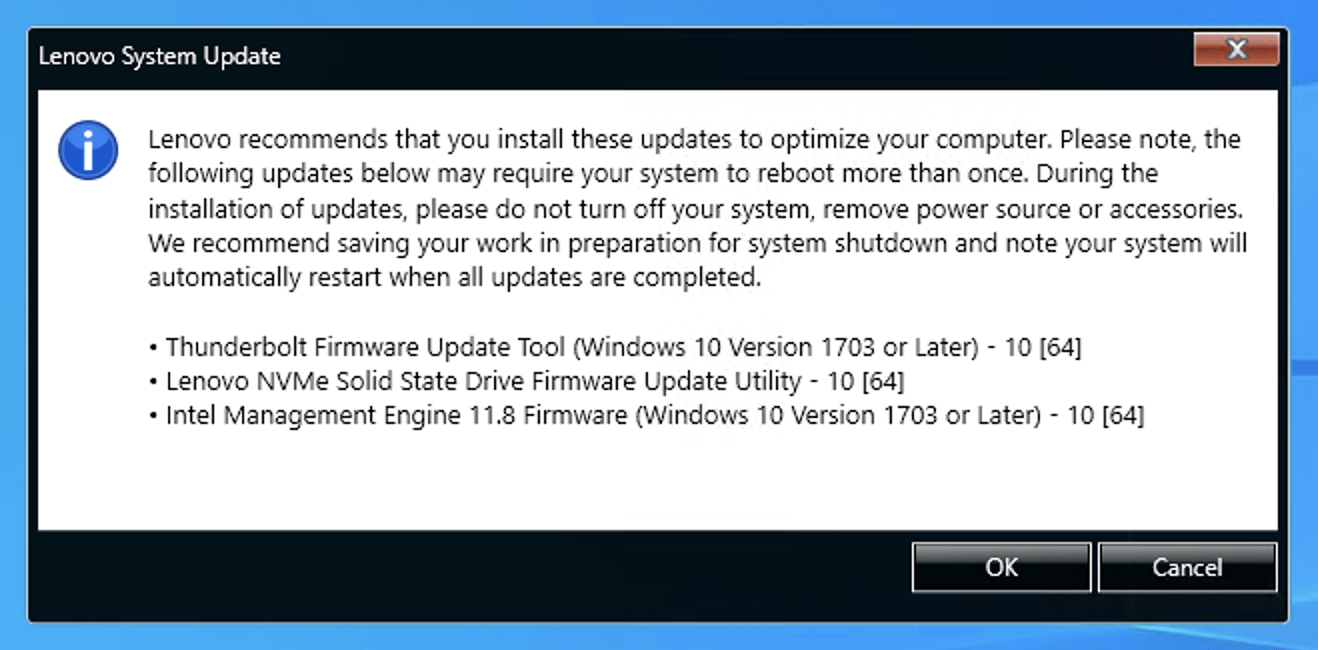
Every once in a while, you may be faced with a notification telling you updates that require a computer restart are available. See example message below.


If you see the message, follow the instructions to apply the updates. In general, you should apply the updates as soon as you are able. While you have the option of clicking “Cancel”, you will need to install the updates sooner or later.

While the Lenovo System Update application does run on a regular schedule, you have the option to run it on demand, to look for driver, BIOS, and firmware updates by following the instructions on this page:

Lenovo System Update driver, BIOS, and firmware updates search

Microsoft SharePoint and how to use it (iSchool)

Microsoft SharePoint and how to use it (iSchool)

What is SharePoint?

Microsoft SharePoint (SP) is a Software-as-a-Service (SaaS) web application, primarily used for intranet purposes.

This is different than internet.

  • Internet: The web as you know it.
  • Intranet: The internal network of an organization or similar.

Each SP instance/site is configured differently depending on what it is being used for. This document primarily focuses on the restricted iSchool SP site.

The root of iSchool’s SP intranet is: https://uwnetid.sharepoint.com/sites/ischoolnew

Check with your supervisor as to how to navigate to your team’s SP site. It should be in the primary top menu, under the “restricted” tab in the root site, under the “information technology” section. This is part of how the access control makes sure people only have authentication for what they need.


Navigating your team’s subsite

When you navigate to your restricted site from the above mentioned menu, you will be taken to the subsite’s landing page. This site is created by your team to categorize commonly or frequently used items.

Then, from your subsite, if you navigate to “site content” in the secondary top menu, you can then see your team’s document libraries.

Document libraries are folders that define access control, with each library having a different group of people who can use it. Your supervisor should be the main source of information as to what groups of people are allowed to access each library.

Your SP site, or any document library within, is intended to only be shared as designed. It is not designed to be shared with people outside your team. 


How to access SharePoint

There are multiple ways to access documents stored on SP.

You can access them through navigating as explained above (in the webapp). This is ideal for any computer or operating system, as things like Microsoft Word can function as platform-agnostic webapps in any browser.

However, this is not ideal for any document that needs to be edited in a desktop application installed on your computer, because you would have to download it and upload it manually. Of course, you might be able to write a script to automate that, but not everyone has those skills.

Microsoft Windows and MacOS

In this case, iSchool recommends that you install Microsoft OneDrive (Microsoft Windows and Mac computers), and then navigate to the SharePoint folder your documents are in. Then you can click “add shortcut to OneDrive”.

Protip: Every time you add a shortcut to your OneDrive, it is simply added to the top folder/level of your OneDrive. This can clutter it up very quickly, and be confusing. The way to avoid this is to organize your OneDrive so that the structure replicates the SharePoint layout.

Linux

Linux does not have an official GUI OneDrive client. However, there is a Free Open-Source solution for using OneDrive and SP. It’s repository, and other details (like how to use) can be found here, if you would like to utilize it: https://github.com/abraunegg/onedrive

The installation guide can be found here, with relevant instructions. a little command line knowledge might be needed depending on the install method you choose and distribution: https://github.com/abraunegg/onedrive/blob/master/docs/install.md

Collaboration

Because of the way the SP site is structured, it is not intended for ad-hoc collaboration. Ad-hoc collaboration is collaborating with random people instead of your team.

As previously mentioned, each document library is already shared with a particular group of people. Therefore to collaborate with the respective people, you simply need to place the document in wherever your team decides inside the previously mentioned document library.

To share with people outside of the already predetermined users, you have three options.

  1. If read-only access is sufficient, it is simplest to email the document itself (not a link, the actual file) as an attachment in whatever method is suitable.
  2. To edit collaboratively with a single individual, you could move the document to your Personal OneDrive (or other version control solution, such as GitHub) and share it from there.
  3. To edit collaboratively with a group of people, work with your supervisor and IT to create a new document library that is shared with the desired users. Another version control system, again such as Gitub, could also be used here if your supervisor or IT personnel are unavailable, or if you would like more granular control.

Intended use of SharePoint

Any organization documents that should be retained, even past your employment, should be placed on SP. Do not go uploading random notes, memes, or other such nonsense. Although your meme taste is excellent according to you and you only, we don’t need that taking up space in SP. Please share them via other methods.

Any documents such as your personal notes or files are better suited for your own OneDrive, SSD, or other cloud/physical storage solution. This is because all files related to your account like these will be removed when you leave UW.

Identifying SharePoint collaborators

To clearly identify who a document library is shared with, it is generally a two part process. This is because the iSchool leverages your role and not your identity, whereby even if a person leaves and a new person takes over then the document will still be shared with the same roles.

Example: If you are familiar with the communications platform platform Discord, it would be like if when a member left a server, their roles would stay and be transferred to a new member filling the same position.

To identify collaborators:

If you navigate to “site settings”, and then “library settings”, and then “more library settings”, and then “permissions for this document library”, you will see groups of users that start with “uw_ischool”.

These are collections of role-based access controls to the document libraries and other SharePoint features.

To see the individuals in these roles, you have to go to a different website, “groups.uw.edu”, and search for this particular group name.

Go to “find group”, and then enter the ID from your library permissions into the “find by id” box.

After you search, click over to the “membership” tab, and you should be able to see the group members.

 

Saramonic Blink500ProX | TX + TX + RXUC Wireless Mic – User Guide

Saramonic Blink500ProX | TX + TX + RXUC Wireless Mic – User Guide

Picture of Saramonic Blink 500 ProX B6

The Saramonic Blink500 ProX B6 ( TX + TX + RXUC) is an ultra-compact, lightweight, dual-channel wireless microphone system. The system includes two transmitters (TX) with built-in omnidirectional microphones, support for external lavalier mics, and a USB-C receiver (RXUC) connecting directly to compatible devices/a charging block. With a 328 ft (100m) operating range, 10-hour battery life per TX, and real-time monitoring, the Blink500 ProX is ideal for content creators, journalists, and professionals seeking high-quality, portable wireless audio system.

Powering On/Off

  • Manual Power:
    • Transmitter (TX): Press and hold the power button for 2 seconds to turn on/off.
    • Receiver (RX): The receiver requires a constant power source and must be plugged into a USB-C device to function.

LED Indicators

Charging:

  • Solid Red (TX Indicator): Charging in progress inside the case.
    • The Transmitter (TX) charges when placed in its designated charging slot inside the case.
  • Solid Blue (Front of Case): Indicates the remaining battery level of the charging case.
  • Blinking Blue Slowly (RX Indicator): Unpaired.
  • Blinking Blue Quickly (RX Indicator): Pairing in progress.
  • Static Blue (RX Indicator): Successfully paired.

*Important: The Receiver (RX) must remain connected to a USB-C device to function, as it has no internal battery.*

Case Battery Detection Button:

  • A short press activates the power capacity indicator, displaying the remaining battery level.
  • When the case is closed, a short press will light up the indicator for 3 seconds before turning off.
  • The charging case can be charged via the USB-C port located at the back of the case.

Wi-Fi Pairing Status:

  • Paired Successfully: The Transmitter (TX) displays a Wi-Fi symbol when paired.
  • Unpaired/Disconnected: The Wi-Fi symbol disappears if the Transmitter (TX) is out of range or unpaired.

*Important: Ensure the Receiver (RX) is connected to a power source before pairing. The microphones will not establish a Wi-Fi connection if the receiver is not powered.*


Connecting to Devices

  1. The device can be used as a hands-free lapel microphone given its built-in mic or with the provided external lavalier mic for more focused audio capture.
  2. Ensure the transmitter (TX) is powered on and paired.
  3. Set Blink500 ProX as the audio input source in system settings.

Pairing Devices

The Blink500 ProX system comes pre-paired, but if manual pairing is required, follow these steps:

On the Transmitter(s) (TX):

  1. Press and hold SET to access the menu.
  2. Use the “+” or “–” buttons to navigate to Pair Setting.
  3. Long press SET, select Yes, and confirm.

On the Receiver (RXUC):

  1. Connect the receiver to an Android smartphone, tablet, computer, or any other USB-C device.
  2. Choose the output mode:
    • Mono (M): Both transmitters’ audio is recorded in one channel.
    • Stereo (S): Each transmitter’s audio is recorded separately in left and right channels.
  3. Insert the included pairing pin into the small pinhole on the receiver and hold for 3 seconds.

Pairing will complete within 10 seconds, and the receiver’s LED indicator will turn solid blue, confirming a successful connection.


Monitoring and Adjusting Volume Levels

  • Audio (Microphone) Input: Plugging a lavalier mic into the TX helps focus audio capture and reduces background noise.
  • Audio (Headphone) Output: The receiver (RXUC) has a 3.5mm audio out jack, allowing users to connect a headphone for real-time audio monitoring.

*Important* 

    • The Saramonic Blink500 ProX does not allow volume adjustment on the receiver (RX) side.
    • Use the “+” or “-” buttons to set the transmitter (TX) input gain between 0 to 6.
      • Reducing the gain can help minimize background noise.
      • If all volume indicators turn off, the microphone is muted
    • Since real-time volume adjustments cannot be made on the receiver, users should perform a test run before an event to ensure proper TX gain settings.

Battery Life

  • Built-in Battery Life (Transmitter – TX): Approx. 10 hours
  • Receiver (RX): Requires continuous power to function.

Additional Features

  • Microphone Options:
    • TX units have built-in omnidirectional microphones.
    • Supports external lavalier microphones (3.5mm input, included).
  • Operating Range:
    • Up to 328 ft (100m) in open space.

For detailed setup and troubleshooting, refer to the official Saramonic Blink500 ProX User Manual.

Set up iSchool issued macOS computer

Set up iSchool issued macOS computer

Please reference the following initial, one-time-setup-steps when setting up an iSchool-issued macOS computer. Please contact the iSchool IT Help Desk, 206-616-3086 or ihelp@uw.edu, if there are any questions or issues during this setup process.

This process could take around 40-50 minutes or more to complete.

The following screenshots are a reference based on the time of writing. The actual screens and options you see and click through are subject to change at any time, per Apple, and updates Apple may make to the macOS operating system.

1) Plug in the power adapter if the computer is a laptop. Turn on the computer.

2) Select language, click the forward-arrow.

3) Select your country or region, click Continue.

4) Select and adjust any or all accessibility features or click Not Now to set up later.

5) Select “Set up as new” at the Transfer Your Data… screen. Any other selection will not work with an iSchool-issued macOS device.


6) Connect to any available Internet network. If you and the computer are off campus, use any available Wi-Fi network. If you and the computer are on the UW campus, the “University of Washington” Wi-Fi network is the only network that will work at this step.


7) Click Enroll at the Device Management screen.


8) Authenticate with your UWNetID@uw.edu credentials when prompted.


9) You will see a “welcome” screen advancing through a few steps. The computer is installing applications and applying settings. This may take 4-6 minutes.


10) At the “Create a Mac Account” screen, your name and computer account will be prefilled with your name and UW NetID. Enter your UW NetID password twice, edit the account icon to your liking, click Continue.


11) When you reach the desktop, you will see a “Registration Required” notification. Click the notification to proceed with registering the computer.


12) Click Continue at the Single Sign-On window. Proceed through the Single Sign-On windows to register your computer with the UW instance of Microsoft Entra ID and sync your computer account credentials with your UW NetID account credentials.


13) Install the Code42/CrashPlan file backup software by following the steps on this web page: Install the CrashPlan file backup software.

Use the Code42/CrashPlan software to restore files from a previous computer if necessary. Detailed directions are on this web page: How to restore files using the Code42/CrashPlan application.

Restoring files via Code42/CrashPlan is not necessarily a trivial step. Please contact the iSchool IT Help Desk if there are any questions about restoring files via Code42/CrashPlan.

14) Complete the “Eduroam” WiFi network onboarding steps as described on this web page: Eduroam Onboarding Guides


At this point, your iSchool macOS computer has completed the necessary one-time-setup-steps and is ready to use but may not have all of the customizations you need. Some examples of further actions you may need to take:

If you need to change your default web browser: how to change default web browser


If Microsoft Outlook is your email application of choice, find and start the Microsoft Outlook application. Follow the instructions provided by Outlook to add your @uw.edu email address.


If you have access to a shared @uw.edu email account and need to add the account to Outlook: https://www.kb.ischool.uw.edu/how-to-add-shared-netid-email-account-to-outlook/.


If you need to install SecureCRT (to access The UW Student Data Base): https://itconnect.uw.edu/uware/securecrt/.


You may need or want to sign in to your web browser of choice to sync bookmarks:

Google Chrome sync directions

Firefox sync directions

Microsoft Edge sync directions


If you have multiple monitors and need to configure them, please reference the information on this webpage:

How to use multiple monitors with macOS


If you need to add iSchool printers, please reference the information on this webpage:

How to add a printer to an iSchool-issued computer

Set up iSchool issued Windows computer

Set up iSchool issued Windows computer

Please reference the following initial, one-time-setup-steps when setting up an iSchool-issued Windows computer. Please contact the iSchool IT Help Desk, 206-616-3086 or ihelp@uw.edu, if there are any questions or issues during this setup process.

This process could take around 40-50 minutes or more to complete.

The following screenshots are a reference based on the time of writing. The actual screens and options you see and click through are subject to change at any time, per Microsoft, and updates Microsoft may make to the Windows operating system.

1) Plug in the power adapter if the computer is a laptop. Turn on the computer.

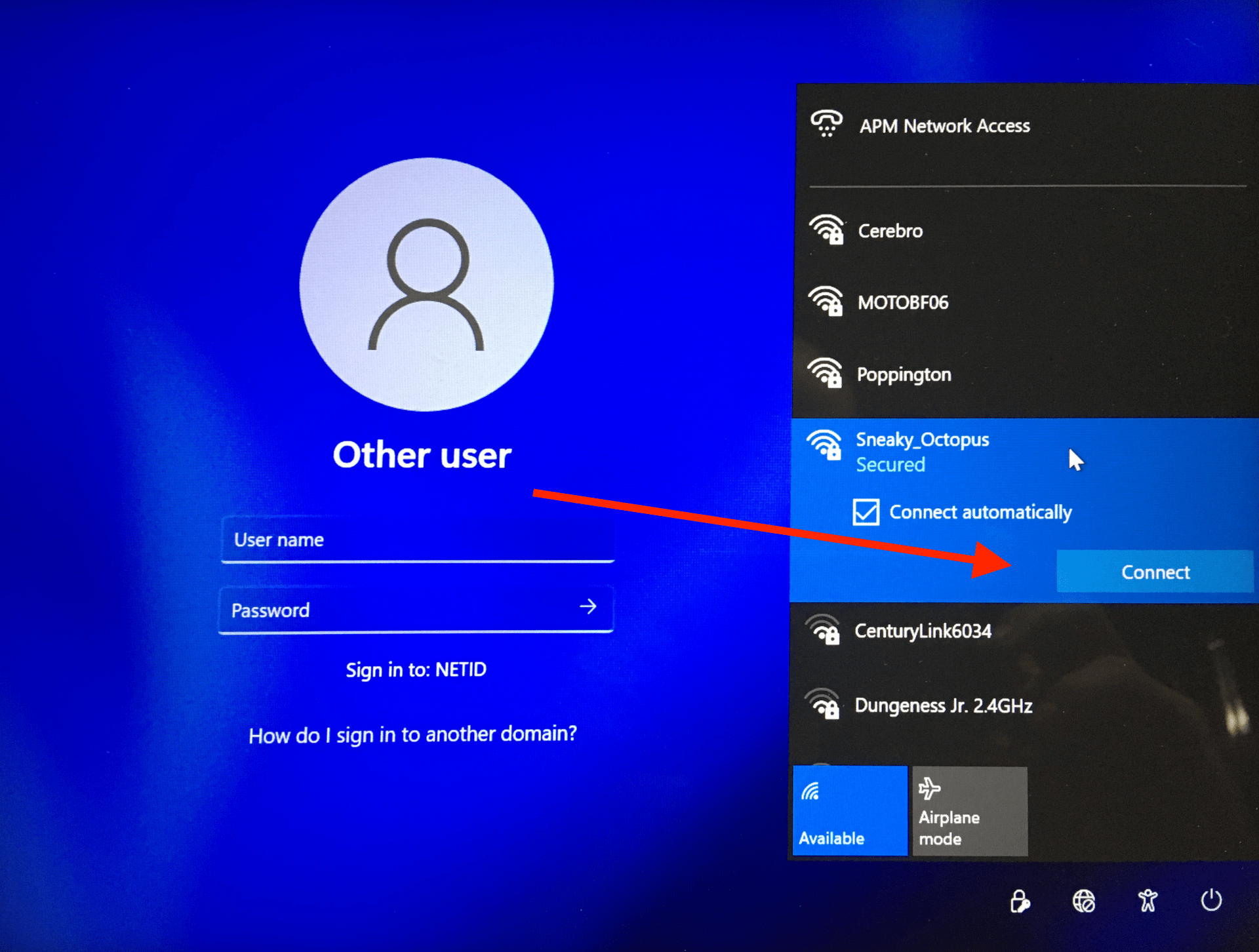
2) If you and the computer are on campus: connect the computer to the wired campus network or the University of Washington WiFi network, sign into the computer with your UW NetID credentials, then go to step 8.

If you and the computer are off campus: connect the computer to any available Internet network, then go to step 3:


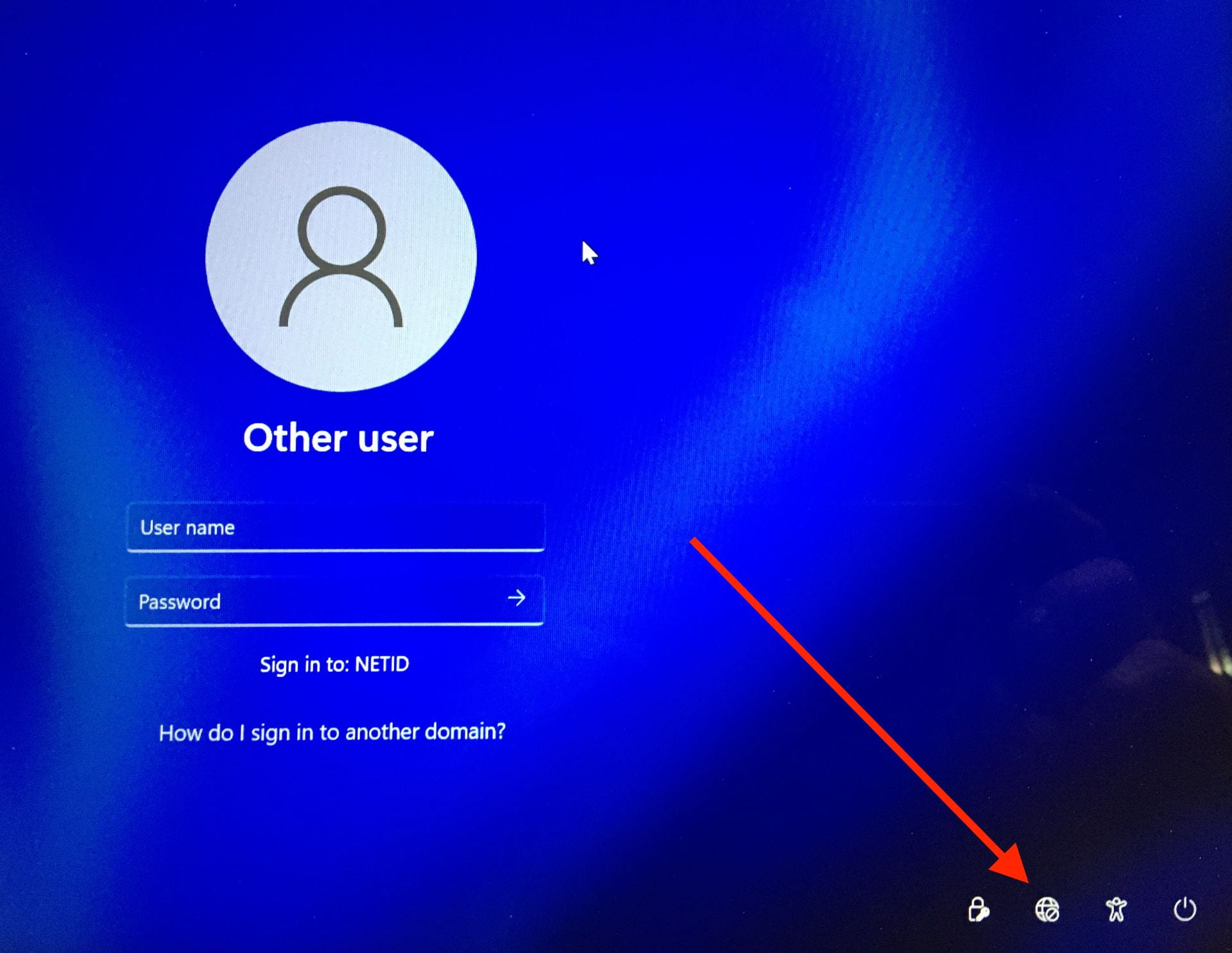
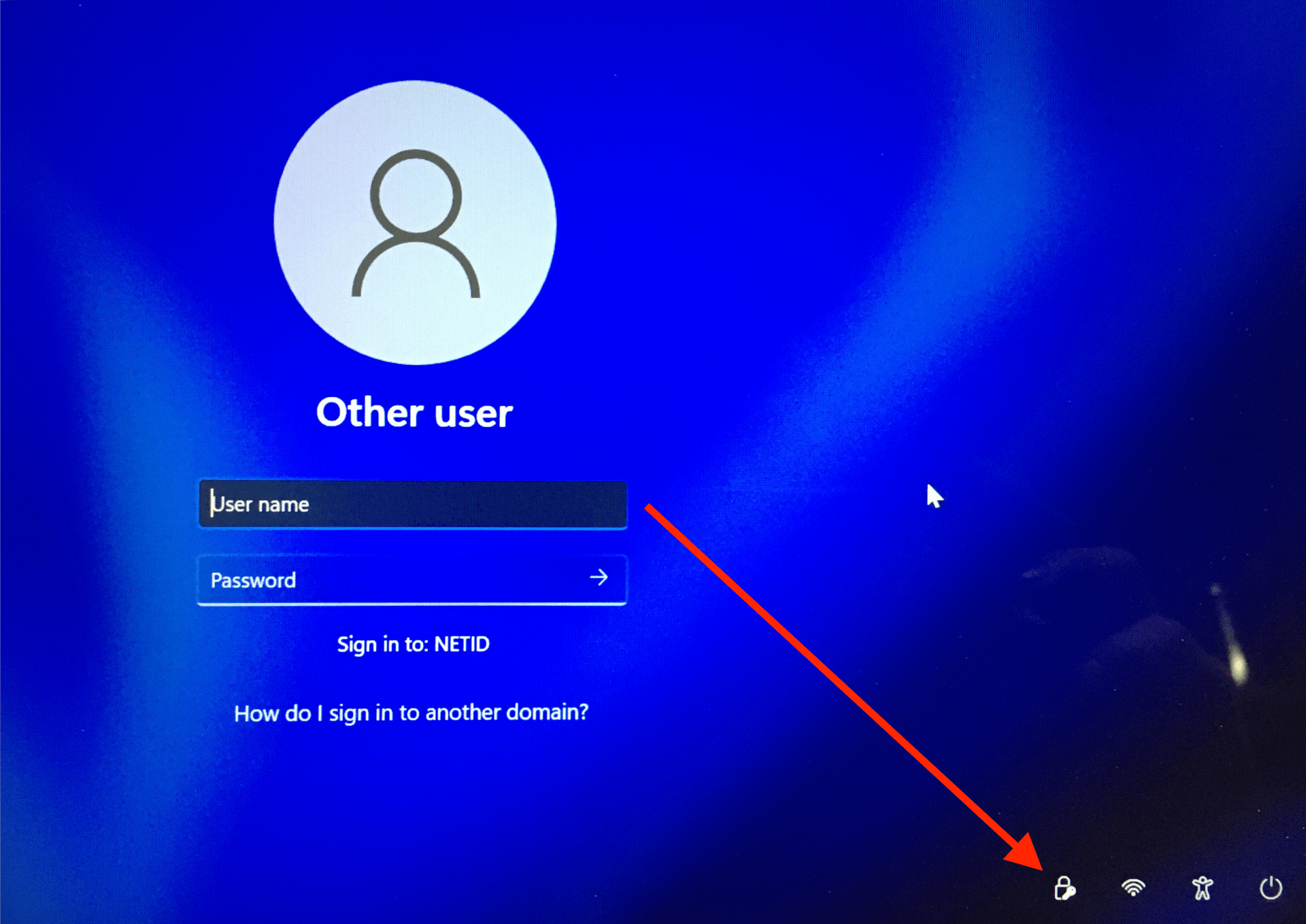
3) Click the “Network sign-in” button:


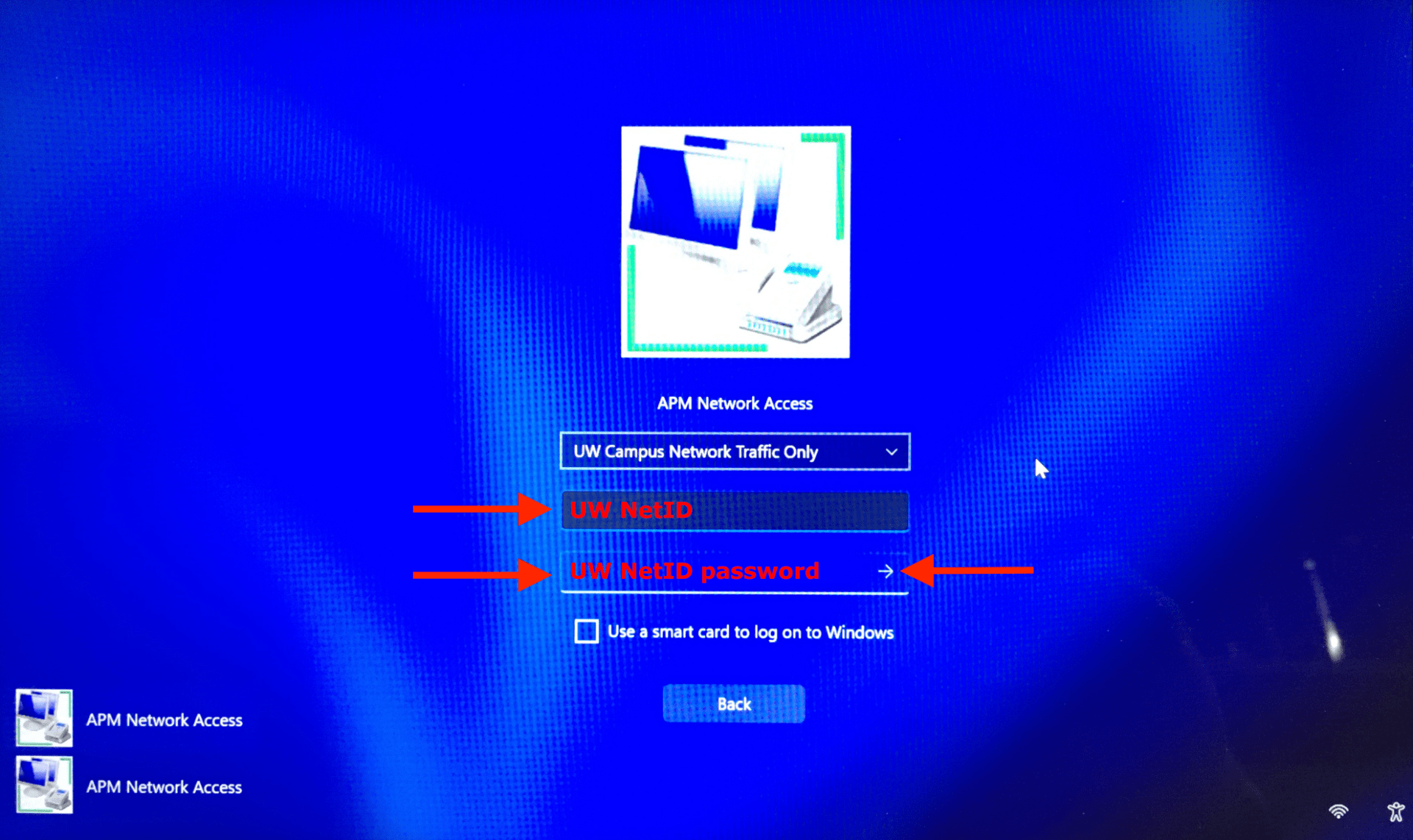
4) On the “Network sign-in” screen, enter your UW NetID credentials, click the forward/enter arrow:


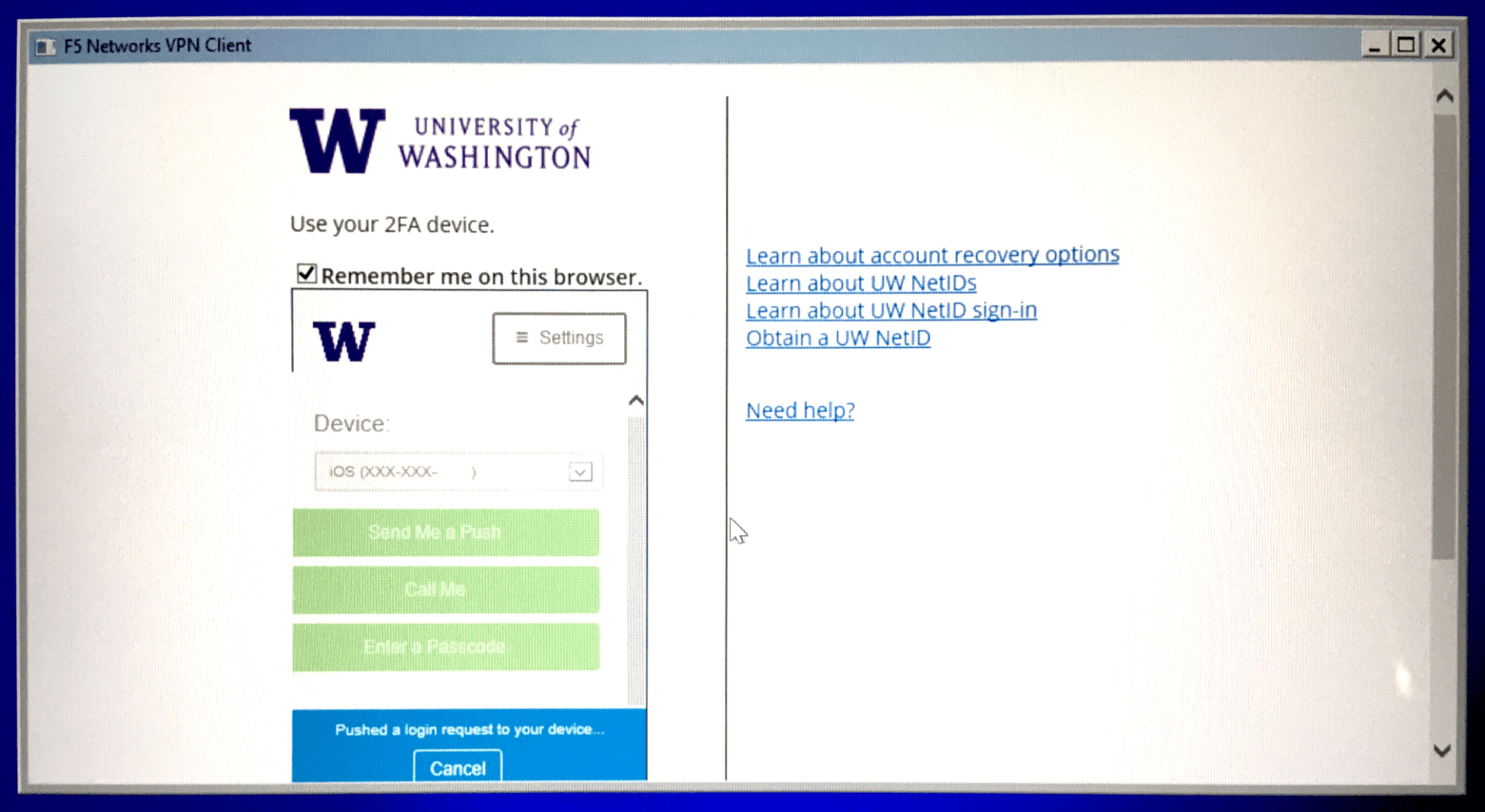
5) At the F5 Networks VPN Client window, sign in with UW NetID credentials, authenticate at the Duo two-factor authentication screen:


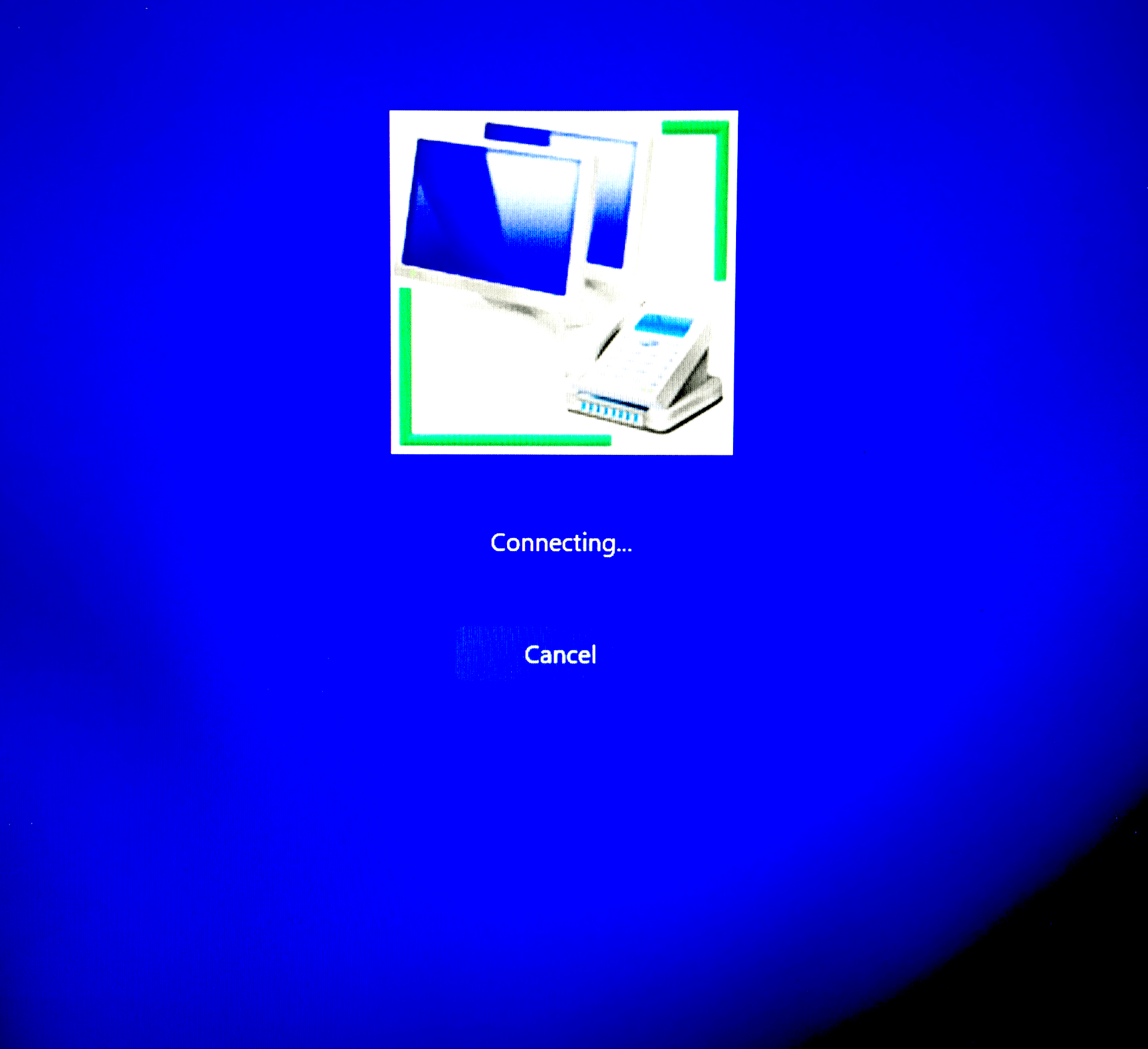
6) You should see a screen indicating “Connecting…” is happening:

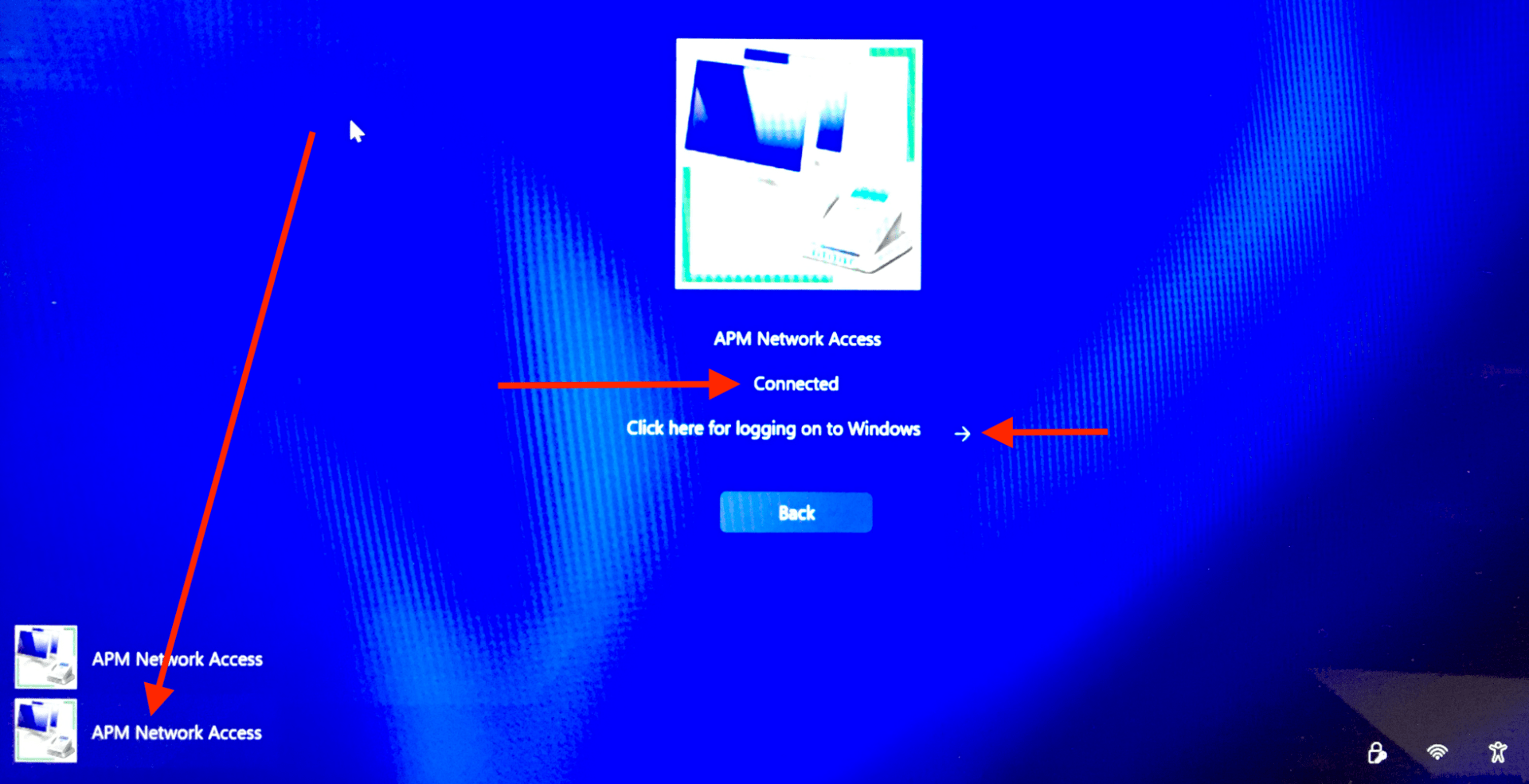
After a handful of seconds, you may see a screen indicating the time. Click a mouse button or trackpad button or press a keyboard key, click the lower/second APM Network Access button, you should see the word “Connected“. Click the forward/enter arrow next to “Click here for logging on to Windows“:


7) If a sign in window appears, sign in with your UW NetID credentials:


8) You should see a series of information screens indicating the sign-in was successful and things are happening. Wait until you eventually reach the desktop.


9) Install the Code42/CrashPlan file backup software by following the steps on this web page: Install the CrashPlan file backup software

Use the Code42/CrashPlan software to restore files from a previous computer if necessary. Detailed directions are on this web page:

How to restore files using the Code42/CrashPlan application

Restoring files via Code42/CrashPlan is not necessarily a trivial step. Please contact the iSchool IT Help Desk if there are any questions about restoring files via Code42/CrashPlan.

10) If the Windows device is a laptop, complete the “Eduroam” WiFi network onboarding steps as described on this web page: Eduroam Onboarding Guides


At this point, your iSchool Windows computer has completed the necessary one-time-setup-steps and is ready to use, but may not have all of the customizations you need. Some examples of further actions you may need to take:

If Microsoft Outlook is your email application of choice, find and start the Microsoft Outlook application. Follow the instructions provided by Outlook to add your @uw.edu email address.

If you have access to a shared @uw.edu email account and need to add the account to Outlook follow the steps on this web page: https://www.kb.ischool.uw.edu/how-to-add-shared-netid-email-account-to-outlook/


If you need to install Zoom: https://zoom.us/download


If you need to install SecureCRT (to access The UW Student Data Base): https://itconnect.uw.edu/uware/securecrt/


If you need or want to sign in to your web browser of choice to sync/retrieve bookmarks:

Google Chrome sync directions

Firefox sync directions

Microsoft Edge sync directions


If you have multiple monitors and need to configure them, please reference the information on this webpage:

How to use multiple monitors with Microsoft Windows


If you need to add iSchool printers, please reference the information on this webpage:

How to add a printer to an iSchool-issued computer

Using Mail Merge (Word) on MacOS

Assuming you are familiar with Microsoft Word’s Mail Merge feature, you may realize that when you are ready to send your email, the option to send your merge emails is not available or greyed out. This document addresses how to solve this issue.

  1. First, launch your MacOS “Mail” client. Then go to “Mail” in the top left, and go to Settings.
  2. From Mail settings, change your default mail client from “Mail” to “Microsoft Outlook”.
  3. Then, go back to your document, the Mail Merge E-Mail button should now be available.
  4. If it still is not available, you may need to save your document somewhere and/or restart Word before using Mail Merge.